

Yoffii FAQ
- How to Add a Listing:

Select the Listing Package:

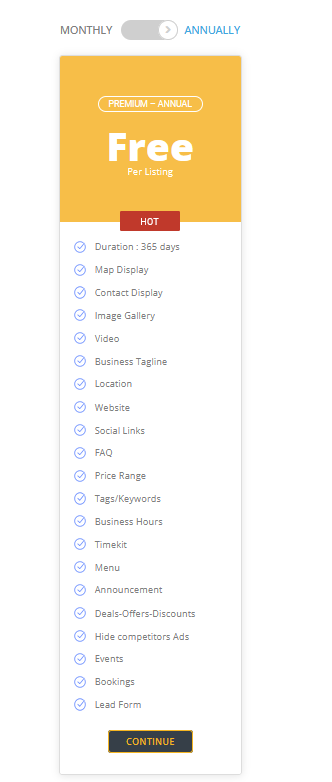
Fill out all the information, try put as much information as possible.
Note: You need to fill in the address manually:
Open Google Maps:
Find your business and right click to get the co-ordinates. Click these and it will copy them.
Paste them into the latitude and longitude fields. Update the rest of the address.


Select Category your business belongs to!
Continue through the form.
Upload media and your icon.
Save and preview.
Congratulations! Once we have approved it will be live for all to see.
- What are the recommended image sizes for your Listing?
Go to your Media Library and check if the image size corresponds exactly as defined.
1 – Home Banner Image
The recommended image size for Home Banner Image is: 1600×1200
You can crop and scale the image the way you desire to, in case you need to give focus in some area of your image.
After uploading your image file, check if the image size corresponds the width and height as mentioned above.
ATTENTION
The Banner Height was set as 610 by default. If you really know what you’re doing, you can change it the way you want to. We recommend that you leave this option set as default by 610. This way, you won’t suffer any malfunction at the responsiveness on mobile devices..
2 – Page header background image
The recommended image size for Page header background image is: 1500×300
You can still use the 1600×1200 though, and after uploading the image, you should go to your Media Library and edit your image size, cropping it, centralizing the detail that you want your image to appear, and set the Height as 300. Don’t worry if your image has the Width result as 1400, the important factor is the Height size of 300.
ATTENTION
Width size less than 1300, will result in gaps between margins, left and right.
3 – Location Images
In case you want to add images for specific locations and show them on your homepage, the recommended size for Location Images is 800×600.
ATTENTION
Higher pixels or Lowest ones, will make the image lose focus and will blur the image causing its distortions.
4 – Logo Images and Logo on header
The recommended size for logo icon is: 32×32, 64×64, 128×128
The recommended size for logo images on header is: 268×38
ATTENTION
Logo sizes will differ depending on whether your logo has also texts. Some may prefer to include only the logo itself without texts in it. You’ll most likely to test it and check which one will fit better for your purpose.
- How to Add an AD Campaign:
Ad campaign allows listing owners to generate more leads and promote their business listings. In addition to Paid Listing and Paid Claim, this is another channel to generate revenue for the site admin. Ads campaign can be run based on the price, duration, available placements along with other options.
STEP 1: Go to User Dashboard > Ad Campaigns

STEP 2: Click + Add New AD
STEP 3: Click Let’s Get Started on the pop-up.
STEP 4: Click Select Listing drop-down, and find a your published listing.
STEP 5: Choose either All or some of the THREE (3) Ad placement options: Spotlight, Top of Search and Sidebar.
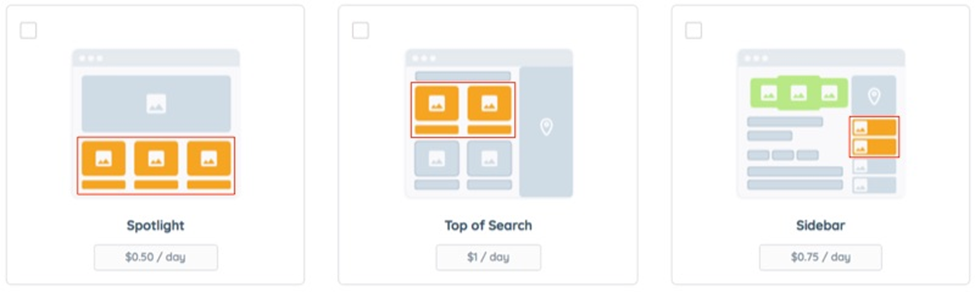
Description automatically generated Orange spots indicate where the listing Ads will be displayed.
STEP 6: Set the campaign duration in days. (Example: Enter 60 for 2 Months)
All users must review the Ad summary carefully before processing the payments. To make any changes (stop, cancel, request refund) to an active ad campaign listing owner have to contact the site admin. This is not an automatic process.
STEP 7: Select a payment method.
To configure a payment option (Example: PayPal, Stripe or Bank Wire) go to WP Admin > Theme Options > Payment Settings.
STEP 8: Click Pay Now
If any payment gateway is not selected, Pay Now button will remain inactive.
- How to add Listings
- How to add Events

Events
- How to add Appointments
- How to add Announcements


